 Posted by
 SideNotes 1.5.2 for macOS

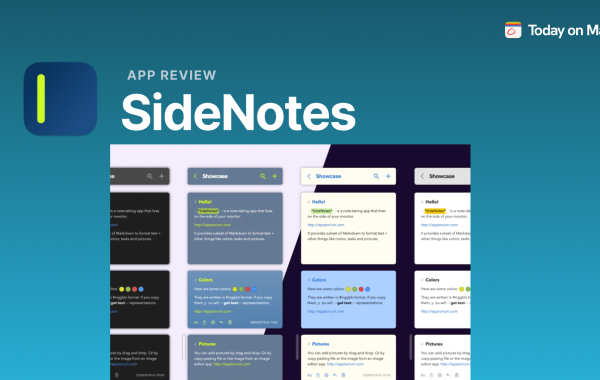
SideNotes is a lightweight and efficient note-taking tool designed to help users capture ideas quickly without interrupting their workflow. As the name suggests, SideNotes focuses on keeping your notes easily accessible on the side of your screen, allowing you to write, review, and manage information while working on other tasks. It is especially popular among professionals, students, developers, and writers who need a fast and distraction-free way to jot down thoughts.
What makes SideNotes stand out is its simplicity combined with smart organization. Instead of opening a full note-taking app that breaks concentration, SideNotes stays quietly available and opens instantly when needed. This makes it perfect for quick reminders, brainstorming sessions, meeting notes, or saving important snippets of information.
SideNotes is built with productivity in mind. It supports clean formatting, keyboard shortcuts, and smooth navigation, ensuring that users can focus on content rather than tools. Whether you are planning a project, writing code, studying, or managing daily tasks, SideNotes acts like a digital sticky note—always present, organized, and easy to use.
Key Features:
- Quick Access from the Side: One of the standout features of SideNotes is its ability to slide in from the side of the screen instantly. This allows users to open their notes without switching applications or disrupting their current workflow. With a simple shortcut or gesture, SideNotes becomes available whenever inspiration strikes.
- Lightweight and Distraction-Free Design: SideNotes is intentionally minimalistic. There are no unnecessary menus or complicated tools, which helps users stay focused on writing. The clean interface reduces mental clutter and improves concentration, especially during work or study sessions.
- Fast Note Creation and Editing: Creating a new note in SideNotes takes just seconds. The app is optimized for speed, allowing users to quickly type, edit, and save notes. This makes it ideal for capturing ideas, reminders, or important points before they are forgotten.
- Smart Note Organization: SideNotes allows users to organize notes efficiently using folders, tags, or lists, depending on the setup. This ensures that even a large number of notes remain easy to manage and retrieve when needed.
- Keyboard Shortcuts Support: For power users, SideNotes supports keyboard shortcuts that speed up navigation and note management. This feature is especially useful for professionals and writers who prefer working without a mouse.
- Always-On-Top Functionality: SideNotes can stay visible on top of other applications, making it easy to reference notes while working on documents, browsing the web, or coding. This feature enhances multitasking and workflow efficiency.
- Data Sync and Backup: Many versions of SideNotes support syncing across devices or cloud backup options. This ensures that your notes remain safe and accessible, even if you switch devices or reinstall the app.
- Privacy and Security: SideNotes respects user privacy by storing notes securely. Some versions also offer passcode or system-level protection to prevent unauthorized access to sensitive information.
System Requirements:
- SideNotes is primarily designed for macOS devices. It works best on modern versions of macOS that support multitasking features and system shortcuts. Older macOS versions may have limited compatibility or reduced performance.
- Processor: A standard Intel or Apple Silicon (M-series) processor is sufficient. SideNotes is lightweight and does not require high-end CPU performance.
- Memory (RAM): A minimum of 4 GB RAM is recommended for smooth operation. Since SideNotes runs alongside other applications, having adequate memory ensures stable performance.
- Storage Space: SideNotes requires minimal disk space for installation. Additional storage may be needed depending on the number of notes you save, but overall usage remains low.
- Display Resolution: A standard screen resolution is sufficient. However, higher resolutions improve readability and make side-panel usage more comfortable, especially on larger displays.
How to Install:
- Check System Compatibility: Before installing SideNotes, make sure your device meets the minimum system requirements. Your Mac should be running a supported version of macOS and have enough storage space available.
- Open the Mac App Store: On your Mac, click the Apple menu or the App Store icon in the Dock to open the Mac App Store. This is the safest and recommended source for downloading SideNotes.
- Search for SideNotes: In the search bar of the Mac App Store, type “SideNotes” and press Enter. Look for the official app in the search results to avoid installing incorrect or unofficial versions.
- Select the App: Click on the SideNotes app to open its details page. Here, you can read the description, view screenshots, and check user ratings to confirm it suits your needs.
- Download and Install: Click the Get or Install button. If prompted, sign in with your Apple ID to proceed. The app will download and install automatically on your Mac.
- Launch SideNotes: Once installation is complete, open SideNotes from the Applications folder or Launchpad.
Learn more about Shadow Defender Final’s features in our guide.