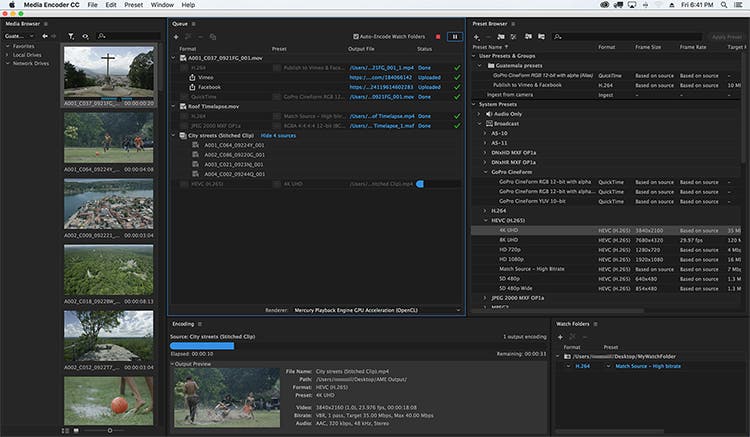
Adobe Media Encoder 26.2 Mac is one of the most reliable media encoding and video exporting applications available for macOS users. Designed to work seamlessly with Adobe Creative Cloud, it helps content creators, video editors, filmmakers, and digital marketers export high-quality videos quickly and efficiently.
Whether you’re editing a YouTube video, creating marketing content, producing online courses, or preparing a professional film project, Adobe Media Encoder simplifies the exporting process with advanced encoding options, batch processing, and broad format compatibility.
Version 26.2 focuses on improving overall stability, performance, and compatibility with the latest versions of macOS while enhancing workflow efficiency for Apple Silicon Macs. If you regularly use Adobe Premiere Pro or After Effects, Media Encoder is an essential companion that saves time and improves productivity.
Key Features of Adobe Media Encoder 26.2 Mac
- Fast Video Encoding
- Adobe Media Encoder is built to encode videos quickly while maintaining excellent image quality. Hardware acceleration on supported Macs helps reduce export times significantly.
- Batch Processing
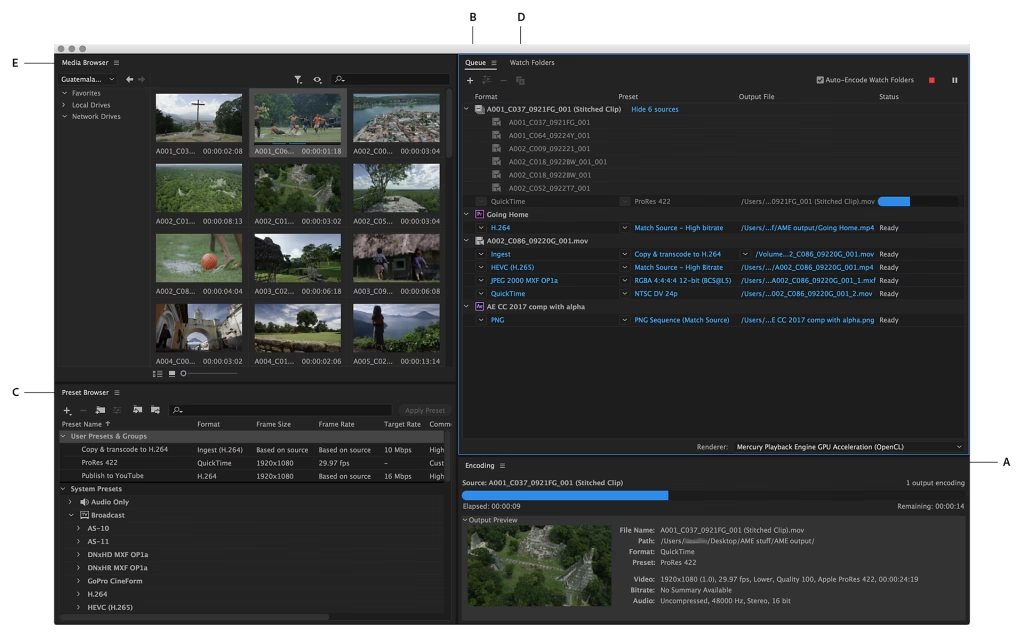
- One of its strongest features is the ability to queue multiple projects and export them simultaneously. This is ideal for professionals working on large video libraries.
- Multiple Export Formats
- The software supports a wide range of export formats, including:
- MP4 (H.264)
- HEVC (H.265)
- QuickTime MOV
- AVI
- MXF
- GIF
- Audio-only formats
- This flexibility makes it suitable for YouTube, Vimeo, Instagram, TikTok, television broadcasting, and professional production.
- Seamless Adobe Creative Cloud Integration
- Adobe Media Encoder works perfectly with:
- Adobe Premiere Pro
- Adobe After Effects
- Adobe Audition
- Adobe Character Animator
- Projects can be sent directly for encoding without interrupting your editing workflow.
- Background Rendering
- Continue editing in Premiere Pro or After Effects while Media Encoder exports your videos in the background, improving productivity.
- Export Presets
- Choose from dozens of professionally optimized presets for:
- YouTube
- Vimeo
- 4K UHD
- HD Broadcast
- Mobile Devices
- These presets save time and reduce manual configuration.
- Hardware Acceleration
- Support for Apple’s Metal graphics technology improves rendering performance and encoding speed on compatible Mac hardware.
- Custom Encoding Settings
- Advanced users can customize:
- Bitrate
- Resolution
- Frame Rate
- Audio Codec
- Video Codec
- Color Settings
- This level of control is especially useful for professional production environments.
What’s New in Adobe Media Encoder 26.2 Mac
- Adobe Media Encoder 26.2 introduces several improvements designed to enhance reliability and performance.
- Better Apple Silicon Optimization
- The application runs more efficiently on Macs powered by Apple Silicon, delivering smoother exports and improved responsiveness.
- Faster Export Performance
- Rendering and encoding speeds have been optimized for many popular codecs, helping creators finish projects more quickly.
- Improved Stability
- Bug fixes reduce crashes and improve reliability during long rendering sessions.
- Better Creative Cloud Compatibility
- Version 26.2 integrates smoothly with the latest versions of Premiere Pro and After Effects, ensuring a seamless editing workflow.
- Enhanced Media Processing
- Improvements to media handling provide more consistent exports across different file formats and resolutions.
Best Alternatives
- If you’re considering other video encoding applications for macOS, here are several excellent alternatives.
- Apple Compressor
- Designed specifically for Final Cut Pro users, Apple Compressor provides powerful encoding tools optimized for macOS.
- HandBrake
- A free and open-source video transcoder that supports numerous formats and advanced compression settings.
- FFmpeg
- A command-line solution favored by developers and advanced users for highly customizable media processing.
- Shutter Encoder
- A user-friendly encoding application that supports many professional codecs and conversion tools.
Pros and Cons
Pros
- Excellent export quality
- Fast rendering performance
- Batch processing support
- Wide format compatibility
- Seamless Creative Cloud integration
- Optimized for Apple Silicon
- Professional export presets
- Background encoding saves time
Cons
- Requires an Adobe subscription
- Advanced settings may feel overwhelming for beginners
- Performance depends on available system resources
- Best experience requires other Adobe applications
System Requirements
- Before installing Adobe Media Encoder 26.2 Mac, make sure your Mac meets these general requirements.
- Operating System
- macOS Monterey (12) or later recommended
- Processor
- Apple Silicon (M1, M2, M3 series) or a supported Intel processor
- RAM
- Minimum: 16 GB
- Recommended: 32 GB for professional workflows
- Storage
- At least 10 GB of available storage, with additional free space recommended for cache files and exports
- Graphics
- Metal-compatible GPU
- Internet
- Internet connection required for installation, activation, and software updates
How to Install Adobe Media Encoder 26.2 Mac
- Download and install the Adobe Creative Cloud desktop application from Adobe’s official website.
- Sign in with your Adobe account.
- Open the Apps section.
- Locate Adobe Media Encoder.
- Click Install.
- Wait for the installation to complete.
- Launch the application from the Applications folder or Creative Cloud.
Frequently Asked Questions
- Is Adobe Media Encoder 26.2 Mac compatible with Apple Silicon?
- Yes. Version 26.2 is optimized for Apple Silicon Macs, delivering improved performance and faster encoding.
- Can I use Adobe Media Encoder without Premiere Pro?
- Yes. It can encode and convert supported media files independently, although it integrates especially well with Premiere Pro and After Effects.
- Which export formats are supported?
- Adobe Media Encoder supports a wide range of formats, including H.264, HEVC (H.265), QuickTime MOV, AVI, MXF, GIF, and several audio formats.
- Is Adobe Media Encoder suitable for beginners?
- Yes. Built-in export presets make it easy for beginners, while advanced settings provide professionals with complete control over encoding.
Conclusion
Adobe Media Encoder 26.2 Mac is an essential tool for anyone working with video on macOS. Its powerful encoding engine, seamless integration with Adobe Creative Cloud, extensive format support, and optimized performance on Apple Silicon make it a valuable addition to any creative workflow. Whether you’re exporting videos for YouTube, producing commercial projects, or delivering professional media, Adobe Media Encoder offers the speed, reliability, and flexibility needed to handle demanding tasks efficiently.
]]>
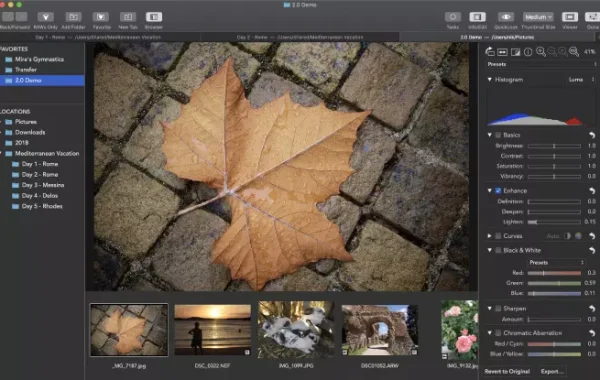
RAW Converter Ultimate is a powerful and versatile software designed for photographers and digital imaging enthusiasts who need to convert RAW image files to commonly used formats such as JPEG, TIFF, PNG, and others. This tool allows you to maintain maximum image quality while offering flexibility for post-processing and editing.
With RAW Converter Ultimate, users can efficiently manage large batches of RAW files, making it the ideal tool for professional photographers working with multiple images from DSLR or mirrorless cameras. The software supports a wide range of camera models and RAW file types, ensuring compatibility and a smooth workflow.
Key Features:
- Extensive RAW Format Compatibility: Compatible with RAW files from most DSLR and mirrorless cameras, including Canon, Nikon, Sony, and Fujifilm.
- Batch Conversion: Convert multiple RAW files simultaneously, saving time and increasing workflow efficiency.
- High-Quality Output: Convert images without losing detail, color accuracy, or resolution.
- Multiple Output Formats: Export images to JPEG, TIFF, PNG, BMP, and more.
- Color and Exposure Adjustment: Precisely adjust brightness, contrast, saturation, and exposure during conversion.
- Metadata Preservation: Preserves important metadata such as EXIF and IPTC information for proper image cataloging.
- Customizable Output Settings: Control resolution, quality, file names, and destination folders.
- Intuitive Interface: Easy-to-use interface that allows both beginners and professionals to efficiently convert RAW files.
- Fast processing: Optimized for fast conversion without compromising image quality.
What’s New
- Added HEIC format support
- Improved performance
- More camera support
- Fixed automatic white balance issue
- Added image format conversion function
- Added preset function
- Multi-language support
Pros and Cons
Pros
- Simple and intuitive interface for beginners.
- Compatible with multiple RAW image formats.
- Fast RAW tProso JPG/PNG conversion.
- Batch conversion function available.
- High-quality images.
- Lightweight and easy-to-use software.
- Supports HEIC format.
- Drag-and-drop functionality.
Cons
- Primarily available for macOS users.
- Some advanced features require payment.
- Limited editing tools compared to professional software.
- Occasional bugs reported by users.
- Does not include advanced photo enhancement features.
- Not ideal for intensive professional editing work.
System Requirements
- Operating System: macOS 10.12 (Sierra) or later
- Processor: Intel-based Mac
- RAM: Minimum 2 GB
- Hard Disk Space: At least 500 MB free space
How to install
- Download the RAW Converter Ultimate installer from the official website.
- Open the downloaded file and drag the application to your Applications folder.
- Launch the application from your Applications folder or Launchpad.
- Enter your license key to activate Premium features, if applicable.
- Update the software to the latest version for optimal performance and compatibility with your camera.
FAQs
- Does it support batch conversion?
- Yes. Batch conversion is one of its main features. Users can drag multiple RAW files into the application and convert them simultaneously.
- Is RAW Converter Ultimate free?
- The application is free to download on macOS, but some features require an in-app purchase. One of the available upgrades is access to “Full Features.”
- Is it available for Windows?
- The official application is primarily for macOS. Some third-party websites mention Windows compatibility layers/emulators, but the official App Store version is only for Mac.
- Does it preserve image quality?
- The developer claims it offers “very high conversion quality,” but some user reviews report issues such as inaccurate colors or reduced JPG quality.
Conclusion
RAW Converter Ultimate is a simple and efficient RAW image converter designed for Mac users. It supports multiple RAW file formats, offers fast batch conversion, and produces high-quality images. With an intuitive interface and useful features like HEIC support and drag-and-drop import, it’s an excellent choice for photographers and casual users who need quick RAW file conversion.
Learn more about Shadow Defender Final’s features in our guide.
]]>
iTools Pro Introduction:
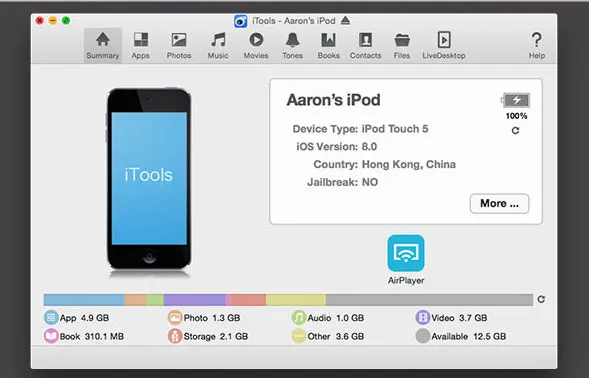
iTools Pro is a powerful and versatile software designed to help users efficiently manage their iOS devices, including iPhones, iPads, and iPods. Unlike the standard iTunes, iTools Pro provides a more intuitive and user-friendly interface, offering advanced features for both casual users and professionals who need full control over their Apple devices.
Key Features:
- Comprehensive Device Management: allows users to manage apps, photos, music, videos, contacts, messages, and other data seamlessly. It provides a complete overview of your device storage and enables smooth transfer of files between your device and computer.
- App Management: Users can install, uninstall, backup, and restore apps directly through iTools Pro without the restrictions of the App Store. It also allows app data management and easy migration between devices.
- Backup and Restore: offers full backup solutions, letting users create complete backups of their devices. It also allows selective restoration of data, which is faster and more flexible than traditional iTunes backups.
- Media Management: Easily import and export music, videos, and ringtones. iTools Pro supports conversion of media files into iOS-compatible formats, making it a convenient all-in-one media manager.
- Battery and Device Health Monitoring: The software provides detailed insights into device performance, battery health, and system diagnostics, helping users optimize their devices for better performance.
- Ringtone Maker & File Explorer includes tools like a ringtone maker, which allows users to create personalized ringtones, and a file explorer for accessing system files safely without jailbreaking.
- Data Migration & Device Switching: It simplifies the process of transferring data between devices, which is particularly useful when upgrading to a new iPhone or iPad.
System Requirements:
- Windows: Windows 7/8/10/11 (32-bit or 64-bit)
- macOS: macOS 10.9 and above
- iOS Device: iOS 7 and later
- Free USB port for device connection
How to install:
- Follow the on-screen instructions.
- Select the installation folder or leave it as default.
- Click Install and wait for the process to complete.
Learn more about Shadow Defender Final’s features in our guide.
]]>
Pro Disk Cleaner typically refers to a utility software designed to clean, optimize, and maintain your computer’s hard drive or storage devices. Such tools help improve system performance by removing unnecessary files, freeing up disk space, and sometimes repairing disk errors.
Key Features:
- Junk File Removal: Deletes temporary files, cache, log files, and other unnecessary data that clogs up disk space.
- Duplicate File Finder: Identifies and removes duplicate files to free up storage.
- Disk Cleanup: Scans and cleans system files, browser caches, recycle bin, and other areas where redundant data accumulates.
- System Optimization: Enhances overall system performance by clearing out clutter and optimizing disk usage.
- Privacy Protection: Removes browsing history, cookies, and other personal data to protect user privacy.
System Requirements:
- Operating System: Windows 10 or 11 (64-bit preferred)
- Processor: Intel Core i3 or better
- RAM: 4 GB or more
- Hard Drive Space: 200 MB or more free space for installation and operations
- Display: Full HD (1920 x 1080) or higher resolution for better interface clarity
How to Install:
- Download the Installer: Go to the official website or a trusted software distribution platform. Download the latest Pro Disk Cleaner installer file (usually an .exe file).
- Run the Installer: Locate the downloaded file (typically in your Downloads folder). Double-click the installer to launch the setup wizard.
- Start Installation: Follow the on-screen prompts. Accept the License Agreement or Terms of Service. Choose the installation folder or keep the default location.
- Select Additional Options: You may be asked to create desktop shortcuts or enable automatic updates. Choose according to your preference.
- Install the Software: Click “Install” or “Next” to proceed. Wait for the installation to complete.
Learn more about Shadow Defender Final’s features in our guide
]]>
Ratiborus KMS Tools is a collection of utilities designed primarily for activating Microsoft Windows and Office products using KMS (Key Management Service) technology. These tools are popular for managing volume license activations, allowing users to activate multiple installations of Windows or Office efficiently.
Key Features of Ratiborus KMS Tools:
- Activation Utilities: Includes multiple tools to activate various versions of Microsoft Windows and Office.
- Volume License Support: Designed to work with volume licensing editions.
- User-Friendly Interface: Easy to use with straightforward activation processes.
- Multiple Versions Supported: Supports a wide range of Windows and Office versions.
- Portable: Usually available as a portable package, requiring no installation.
- Additional Tools: May include tools for managing licenses, resetting activation status, and viewing system information.
System Requirements:
- Operating System: Windows 7, Windows 8, Windows 8.1, Windows 10, Windows 11 Both 32-bit and 64-bit versions supported (depending on the specific tool)
- Processor: 1 GHz or faster processor
- RAM: Minimum 512 MB RAM (1 GB or more recommended)
- Hard Disk Space: Minimal space needed, usually less than 50 MB
How to install:
- Download the Tools: Obtain the Ratiborus KMS Tools package from a trusted source.
- Extract the Package: The tools usually come in a compressed file (ZIP or RAR). Right-click the downloaded file and select “Extract All” to unzip the contents to a folder.
- Disable Antivirus Temporarily (Optional): Some antivirus programs may flag activation tools as potentially unwanted. Temporarily disable antivirus protection if necessary, but only if you trust the source.
- Run the Tool: Navigate to the extracted folder. Right-click the main executable file (e.g., “KMSAuto.exe” or similar) and select “Run as administrator.”
- Follow On-Screen Instructions: Use the tool’s interface to activate your Windows or Office product. Typically, you select the product and click on “Activate” or a similar button.
Learn more about Shadow Defender Final’s features in our guide.
]]>
SeaTools is a diagnostic software suite developed by Seagate designed to test and analyze the health and functionality of hard drives and solid-state drives (SSDs). It helps users identify drive issues, perform diagnostics, and troubleshoot problems to maintain data integrity and drive performance.
Key Features of SeaTools:
- Drive Diagnostics: Run comprehensive tests to check the health of Seagate and non-Seagate drives.
- Short and Long Tests: Perform quick scans or more thorough extended tests.
- Drive Information: View detailed information about the drive’s model, firmware, serial number, and S.M.A.R.T. status.
- Error Detection: Identify bad sectors, read/write errors, and other drive faults.
- Drive Repair: Attempt to fix minor issues or mark bad sectors to prevent data loss.
- User-Friendly Interface: Easy to use with clear instructions and test results.
- Supports Multiple Drive Types: Compatible with HDDs, SSDs, and external drives.
System Requirements:
- Operating System: Windows 11, Windows 10, Windows 8, Windows 7 (both 32-bit and 64-bit versions supported). For SeaTools for DOS, compatible with BIOS-based systems
- Processor: 1 GHz or faster processor
- RAM: Minimum 512 MB RAM (1 GB or more recommended)
- Hard Disk Space: At least 100 MB of free disk space for installation
How to install:
- Download the Installer: Visit the official Seagate SeaTools website. Download the appropriate version of SeaTools for your system (Windows or DOS).
- Close Other Applications: Close all running programs, especially any disk management or monitoring tools.
- Run the Installer: Locate the downloaded SeaTools installer file (usually a .exe). Double-click the file to launch the setup wizard.
- Allow Installation: If prompted by User Account Control (UAC), click “Yes” to allow the installer to make changes.
- Accept License Agreement: Read the license terms carefully. Check the box to accept the agreement and click “Next” or “Accept.”
Learn more about Shadow Defender Final’s features in our guide.
]]>
SysTools Gmail Backup is a specialized software designed to help users securely back up their Gmail emails and associated data to their local computer or external storage. It provides an easy and efficient way to save Gmail mailbox contents, including emails, attachments, contacts, calendars, and more, in various file formats for offline access and data protection.
Key Features of SysTools Gmail Backup:
- Backup Gmail Emails: Download all emails from Gmail accounts safely to local storage.
- Multiple File Formats: Export emails in formats such as PST, EML, MSG, MBOX, or PDF.
- Selective Backup: Filter emails by date range, sender, or folder to customize the backup.
- Preserve Folder Hierarchy: Maintains the original folder structure during backup.
- Supports Multiple Accounts: Backup emails from multiple Gmail accounts in one go.
- Secure and Private: Uses OAuth 2.0 for secure authentication without storing passwords.
- Pause and Resume: Allows pausing and resuming backup processes as needed.
- User-Friendly Interface: Easy to use with clear instructions and options.
System Requirements:
- Operating System: Windows 11, Windows 10, Windows 8.1, Windows 8, Windows 7 (both 32-bit and 64-bit versions supported)
- Processor: 1 GHz or faster processor
- RAM: Minimum 2 GB RAM (4 GB or more recommended for better performance)
- Hard Disk Space: At least 100 MB of free disk space for installation (additional space needed for backed-up emails)
- Display: 1024 x 768 screen resolution or higher
How to install:
- Download the Installer: Visit the official SysTools website or a trusted source. Download the SysTools Gmail Backup installation file
- Run the Installer: Locate the downloaded file, typically in your Downloads folder. Double-click the installer to launch the setup wizard.
- Allow Installation: If prompted by User Account Control (UAC), click “Yes” to allow the installer to make changes to your system.
- Accept License Agreement: Read the license terms carefully. Check the box to accept the agreement and click “Next” or “Accept” to continue.
- Choose Installation Location: Accept the default folder or click “Browse” to select a different directory. Click “Next.”
Learn more about Shadow Defender Final’s features in our guide.
]]>
FileMenu Tools is a handy Windows utility that allows users to customize and extend the context menu (right-click menu) in File Explorer. It enables you to add, remove, or configure commands and shortcuts for quick access to frequently used functions, improving productivity and workflow.
Key Features of FileMenu Tools:
- Customize Context Menu: Add new commands or remove unwanted entries from the right-click menu.
- Predefined Actions: Includes built-in tools such as copy/move to folder, delete specific file types, rename files, split/join files, and more.
- Create Custom Commands: Define your own commands to run programs, open files, or execute scripts.
- Submenus: Organize commands into submenus to keep the context menu tidy.
- File and Folder Operations: Easily perform batch operations like deleting, copying, or moving files.
- Integration: Works seamlessly with Windows File Explorer.
- User-Friendly Interface: Simple interface to configure and manage context menu items.
System Requirements:
- Operating System: Windows 11, Windows 10, Windows 8, Windows 7, Windows Vista, Windows XP (both 32-bit and 64-bit versions supported)
- Processor: 1 GHz or faster processor
- RAM: Minimum 512 MB RAM (1 GB or more recommended for better performance)
- Hard Disk Space: At least 20 MB of free disk space for installation
- Display: 1024 x 768 screen resolution or higher
- Additional: Administrator privileges may be required to modify context menu entries. Compatible with Windows File Explorer integration
How to install:
- Download the Installer: Visit the official FileMenu Tools website or a trusted download source. Download the latest version of the installer file (usually a .exe).
- Run the Installer: Locate the downloaded file, typically in your Downloads folder. Double-click the installer file to launch the setup wizard.
- Allow Installation: If prompted by User Account Control (UAC), click “Yes” to permit the installer to make changes to your system.
- Accept License Agreement: Read the license terms carefully. Check the box to accept the agreement and click “Next” or “Accept.”
- Choose Installation Location: Accept the default installation folder or click “Browse” to select a different location.
Learn more about Shadow Defender Final’s features in our guide.
]]>
Uninstall Tool is a third-party utility that provides advanced features for managing and uninstalling software on Windows computers. It helps users cleanly remove applications, including stubborn programs that are difficult to uninstall through the standard Windows Control Panel.
Key Features:
- Complete removal of programs including leftover files and registry entries.
- Batch uninstall multiple applications at once.
- Manage startup programs for faster boot times.
- Detailed information about installed software.
- User-friendly interface with drag-and-drop uninstall.
- Portable version available (no installation required).
System Requirements:
- Operating System: Windows 11, Windows 10, Windows 8, Windows 7, Windows Vista, Windows XP (both 32-bit and 64-bit versions supported)
- Processor: 1 GHz or faster processor
- RAM: Minimum 512 MB RAM (1 GB or more recommended)
- Hard Disk Space: At least 20 MB of free disk space for installation
- Display: 1024 x 768 screen resolution or higher
- Additional: Administrator privileges required for uninstalling software and making system changes
How to install:
- Download the Installer: Visit the official Uninstall Tool website or a trusted source to download the installation file (usually a .exe file).
- Run the Installer: Locate the downloaded file (typically in your Downloads folder). Double-click the installer file to start the setup wizard.
- Allow Installation: If prompted by User Account Control (UAC), click “Yes” to permit the installer to make changes to your system.
- Accept License Agreement: Read the license terms. Check the box to accept the agreement and click “Next” or “Accept.”
- Choose Installation Location: The installer will suggest a default folder. You can accept this or click “Browse” to select another location. Click “Next” to continue.
- Select Additional Options: Choose whether to create desktop shortcuts or enable automatic updates. Click “Next.”
Learn more about Shadow Defender Final’s features in our guide.

Office Tool Plus is a free utility that helps users manage Microsoft Office installations more effectively. It allows you to download, install, customize, activate, and update Microsoft Office products like Office 2013, 2016, 2019, and Microsoft 365.
Key Features:
- Download Office installation files with the latest updates.
- Customize installation options (select apps, languages, architecture).
- Manage Office activation (supports multiple activation methods).
- Update Office offline or online.
- Remove Office products cleanly.
- Export and import Office configuration settings.
System Requirements:
- Operating System: Windows 11, Windows 10, Windows 8.1, Windows 8, Windows 7 (both 32-bit and 64-bit versions supported)
- Processor: 1 GHz or faster processor
- RAM: Minimum 1 GB RAM for 32-bit OS, 2 GB or more for 64-bit OS
- Hard Disk Space: At least 500 MB of free disk space (additional space required for Office installation files)
- Display: 1024 x 768 screen resolution or higher
- .NET Framework: .NET Framework 4.7.2 or later installed
- Internet Connection: Required for downloading Office installation files and updates
How to install:
- Download the Installer: Visit the official Office Tool Plus website or a trusted source to download the latest version of the installer (usually a .exe file).
- Run the Installer: Locate the downloaded file (commonly in the Downloads folder). Double-click the installer file to launch the setup wizard.
- Allow Installation: If prompted by User Account Control (UAC), click “Yes” to allow the installer to make changes to your system.
- Select Installation Location: Choose the folder where you want to install Office Tool Plus or accept the default location. Click “Next” or “Install” to proceed.
- Complete Installation: Wait for the installation to finish. Click “Finish” to exit the installer.
- Launch Office Tool Plus: Open the application from the desktop shortcut or Start menu. You can now use it to download, install, customize, or manage Microsoft Office products.