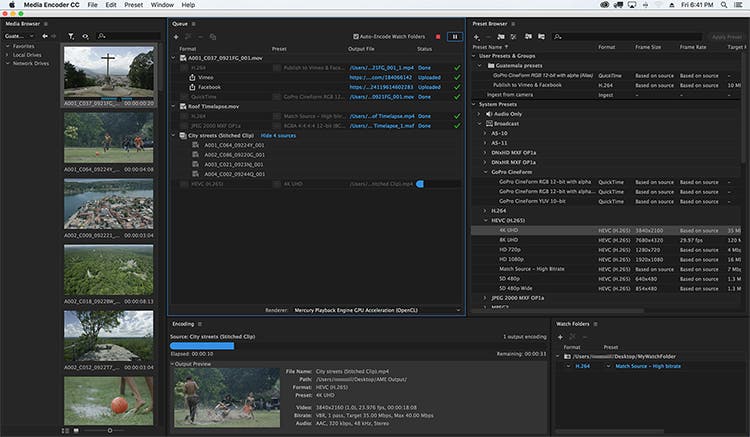
Adobe Media Encoder 26.2 Mac is one of the most reliable media encoding and video exporting applications available for macOS users. Designed to work seamlessly with Adobe Creative Cloud, it helps content creators, video editors, filmmakers, and digital marketers export high-quality videos quickly and efficiently.
Whether you’re editing a YouTube video, creating marketing content, producing online courses, or preparing a professional film project, Adobe Media Encoder simplifies the exporting process with advanced encoding options, batch processing, and broad format compatibility.
Version 26.2 focuses on improving overall stability, performance, and compatibility with the latest versions of macOS while enhancing workflow efficiency for Apple Silicon Macs. If you regularly use Adobe Premiere Pro or After Effects, Media Encoder is an essential companion that saves time and improves productivity.
Key Features of Adobe Media Encoder 26.2 Mac
- Fast Video Encoding
- Adobe Media Encoder is built to encode videos quickly while maintaining excellent image quality. Hardware acceleration on supported Macs helps reduce export times significantly.
- Batch Processing
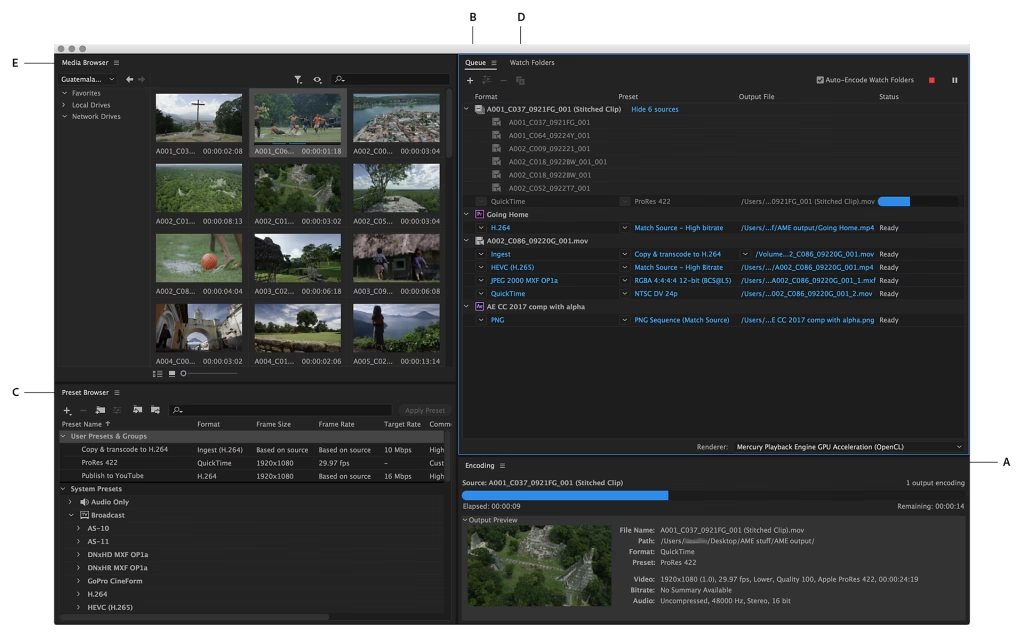
- One of its strongest features is the ability to queue multiple projects and export them simultaneously. This is ideal for professionals working on large video libraries.
- Multiple Export Formats
- The software supports a wide range of export formats, including:
- MP4 (H.264)
- HEVC (H.265)
- QuickTime MOV
- AVI
- MXF
- GIF
- Audio-only formats
- This flexibility makes it suitable for YouTube, Vimeo, Instagram, TikTok, television broadcasting, and professional production.
- Seamless Adobe Creative Cloud Integration
- Adobe Media Encoder works perfectly with:
- Adobe Premiere Pro
- Adobe After Effects
- Adobe Audition
- Adobe Character Animator
- Projects can be sent directly for encoding without interrupting your editing workflow.
- Background Rendering
- Continue editing in Premiere Pro or After Effects while Media Encoder exports your videos in the background, improving productivity.
- Export Presets
- Choose from dozens of professionally optimized presets for:
- YouTube
- Vimeo
- 4K UHD
- HD Broadcast
- Mobile Devices
- These presets save time and reduce manual configuration.
- Hardware Acceleration
- Support for Apple’s Metal graphics technology improves rendering performance and encoding speed on compatible Mac hardware.
- Custom Encoding Settings
- Advanced users can customize:
- Bitrate
- Resolution
- Frame Rate
- Audio Codec
- Video Codec
- Color Settings
- This level of control is especially useful for professional production environments.
What’s New in Adobe Media Encoder 26.2 Mac
- Adobe Media Encoder 26.2 introduces several improvements designed to enhance reliability and performance.
- Better Apple Silicon Optimization
- The application runs more efficiently on Macs powered by Apple Silicon, delivering smoother exports and improved responsiveness.
- Faster Export Performance
- Rendering and encoding speeds have been optimized for many popular codecs, helping creators finish projects more quickly.
- Improved Stability
- Bug fixes reduce crashes and improve reliability during long rendering sessions.
- Better Creative Cloud Compatibility
- Version 26.2 integrates smoothly with the latest versions of Premiere Pro and After Effects, ensuring a seamless editing workflow.
- Enhanced Media Processing
- Improvements to media handling provide more consistent exports across different file formats and resolutions.
Best Alternatives
- If you’re considering other video encoding applications for macOS, here are several excellent alternatives.
- Apple Compressor
- Designed specifically for Final Cut Pro users, Apple Compressor provides powerful encoding tools optimized for macOS.
- HandBrake
- A free and open-source video transcoder that supports numerous formats and advanced compression settings.
- FFmpeg
- A command-line solution favored by developers and advanced users for highly customizable media processing.
- Shutter Encoder
- A user-friendly encoding application that supports many professional codecs and conversion tools.
Pros and Cons
Pros
- Excellent export quality
- Fast rendering performance
- Batch processing support
- Wide format compatibility
- Seamless Creative Cloud integration
- Optimized for Apple Silicon
- Professional export presets
- Background encoding saves time
Cons
- Requires an Adobe subscription
- Advanced settings may feel overwhelming for beginners
- Performance depends on available system resources
- Best experience requires other Adobe applications
System Requirements
- Before installing Adobe Media Encoder 26.2 Mac, make sure your Mac meets these general requirements.
- Operating System
- macOS Monterey (12) or later recommended
- Processor
- Apple Silicon (M1, M2, M3 series) or a supported Intel processor
- RAM
- Minimum: 16 GB
- Recommended: 32 GB for professional workflows
- Storage
- At least 10 GB of available storage, with additional free space recommended for cache files and exports
- Graphics
- Metal-compatible GPU
- Internet
- Internet connection required for installation, activation, and software updates
How to Install Adobe Media Encoder 26.2 Mac
- Download and install the Adobe Creative Cloud desktop application from Adobe’s official website.
- Sign in with your Adobe account.
- Open the Apps section.
- Locate Adobe Media Encoder.
- Click Install.
- Wait for the installation to complete.
- Launch the application from the Applications folder or Creative Cloud.
Frequently Asked Questions
- Is Adobe Media Encoder 26.2 Mac compatible with Apple Silicon?
- Yes. Version 26.2 is optimized for Apple Silicon Macs, delivering improved performance and faster encoding.
- Can I use Adobe Media Encoder without Premiere Pro?
- Yes. It can encode and convert supported media files independently, although it integrates especially well with Premiere Pro and After Effects.
- Which export formats are supported?
- Adobe Media Encoder supports a wide range of formats, including H.264, HEVC (H.265), QuickTime MOV, AVI, MXF, GIF, and several audio formats.
- Is Adobe Media Encoder suitable for beginners?
- Yes. Built-in export presets make it easy for beginners, while advanced settings provide professionals with complete control over encoding.
Conclusion
Adobe Media Encoder 26.2 Mac is an essential tool for anyone working with video on macOS. Its powerful encoding engine, seamless integration with Adobe Creative Cloud, extensive format support, and optimized performance on Apple Silicon make it a valuable addition to any creative workflow. Whether you’re exporting videos for YouTube, producing commercial projects, or delivering professional media, Adobe Media Encoder offers the speed, reliability, and flexibility needed to handle demanding tasks efficiently.
]]>
MovieMator Video Editor Pro is a user-friendly yet powerful video editing software designed for both beginners and professionals. It offers a range of editing tools, effects, and supports various video formats, enabling users to create polished videos for different purposes such as social media, presentations, and personal projects.
Key Features:
- Multi-track Editing: Work with multiple video, audio, and image tracks simultaneously.
- Wide Format Support: Import and export a variety of video, audio, and image formats.
- Video Effects and Transitions: Apply filters, overlays, and smooth transitions to enhance videos.
- Audio Editing: Adjust volume, add background music, and apply audio effects.
- Text and Titles: Add customizable text, captions, and titles.
- Speed Control: Adjust video playback speed for slow-motion or fast-forward effects.
- Export Options: Save videos in different resolutions and formats optimized for various devices.
System Requirements:
- Operating System: Windows 10 (64-bit)
- Processor: Intel Core i5 or AMD Ryzen 5 or better
- RAM: 8 GB or more
- Graphics: Dedicated GPU with DirectX 11 support (e.g., NVIDIA GeForce GTX 960 or better)
- Storage: SSD recommended for faster video processing
- Display: 1920 x 1080 resolution or higher
- Additional: Sound card with multi-channel audio support
How to Install:
- Download the Installer: Visit the official MovieMator website or a trusted software platform. Download the latest MovieMator Video Editor Pro installation file (usually a .exe).
- Close Other Applications: Exit any running programs to avoid conflicts during installation.
- Run the Installer: Locate the downloaded file in your Downloads folder. Double-click the installer to start the setup wizard.
- Allow Installation: If prompted by User Account Control (UAC), click “Yes” to allow changes.
- Accept License Agreement: Read the license terms carefully. Agree to the terms and click “Next” or “Accept.”
Learn more about Shadow Defender Final’s features in our guide.
]]>