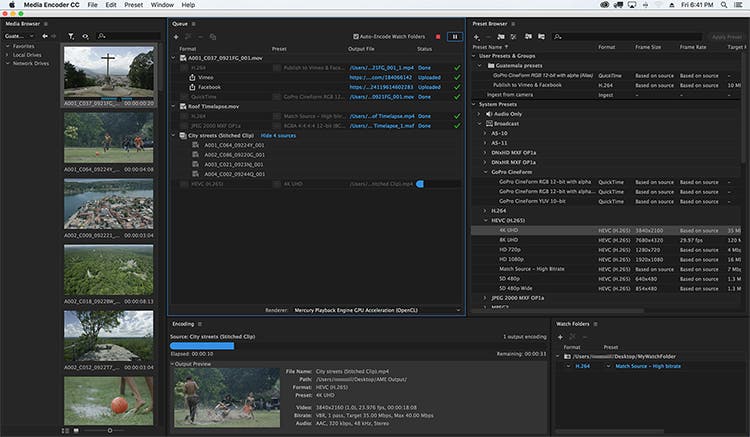
Adobe Media Encoder 26.2 Mac is one of the most reliable media encoding and video exporting applications available for macOS users. Designed to work seamlessly with Adobe Creative Cloud, it helps content creators, video editors, filmmakers, and digital marketers export high-quality videos quickly and efficiently.
Whether you’re editing a YouTube video, creating marketing content, producing online courses, or preparing a professional film project, Adobe Media Encoder simplifies the exporting process with advanced encoding options, batch processing, and broad format compatibility.
Version 26.2 focuses on improving overall stability, performance, and compatibility with the latest versions of macOS while enhancing workflow efficiency for Apple Silicon Macs. If you regularly use Adobe Premiere Pro or After Effects, Media Encoder is an essential companion that saves time and improves productivity.
Key Features of Adobe Media Encoder 26.2 Mac
- Fast Video Encoding
- Adobe Media Encoder is built to encode videos quickly while maintaining excellent image quality. Hardware acceleration on supported Macs helps reduce export times significantly.
- Batch Processing
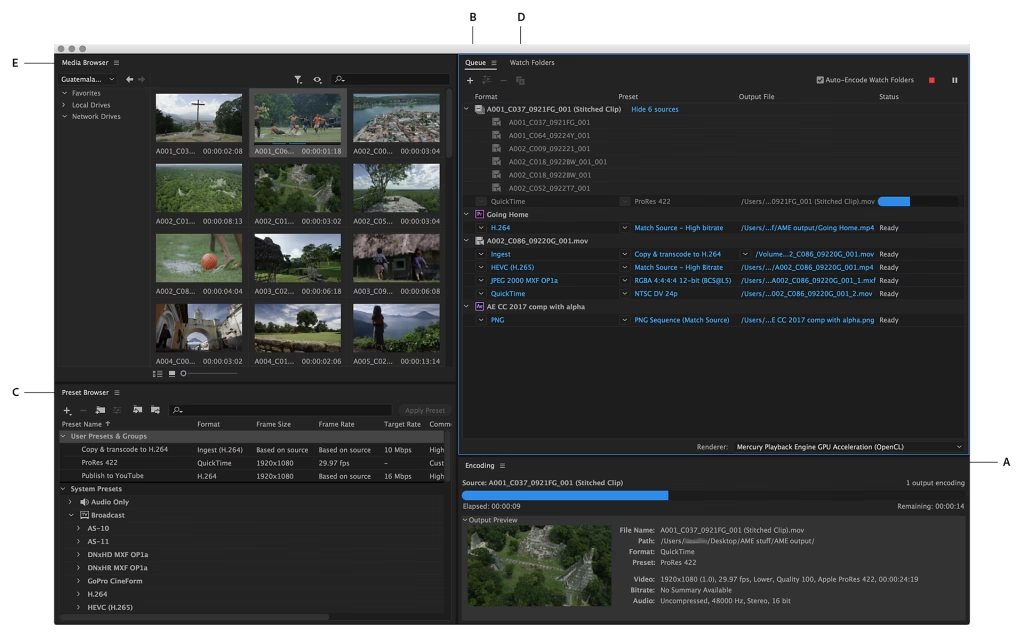
- One of its strongest features is the ability to queue multiple projects and export them simultaneously. This is ideal for professionals working on large video libraries.
- Multiple Export Formats
- The software supports a wide range of export formats, including:
- MP4 (H.264)
- HEVC (H.265)
- QuickTime MOV
- AVI
- MXF
- GIF
- Audio-only formats
- This flexibility makes it suitable for YouTube, Vimeo, Instagram, TikTok, television broadcasting, and professional production.
- Seamless Adobe Creative Cloud Integration
- Adobe Media Encoder works perfectly with:
- Adobe Premiere Pro
- Adobe After Effects
- Adobe Audition
- Adobe Character Animator
- Projects can be sent directly for encoding without interrupting your editing workflow.
- Background Rendering
- Continue editing in Premiere Pro or After Effects while Media Encoder exports your videos in the background, improving productivity.
- Export Presets
- Choose from dozens of professionally optimized presets for:
- YouTube
- Vimeo
- 4K UHD
- HD Broadcast
- Mobile Devices
- These presets save time and reduce manual configuration.
- Hardware Acceleration
- Support for Apple’s Metal graphics technology improves rendering performance and encoding speed on compatible Mac hardware.
- Custom Encoding Settings
- Advanced users can customize:
- Bitrate
- Resolution
- Frame Rate
- Audio Codec
- Video Codec
- Color Settings
- This level of control is especially useful for professional production environments.
What’s New in Adobe Media Encoder 26.2 Mac
- Adobe Media Encoder 26.2 introduces several improvements designed to enhance reliability and performance.
- Better Apple Silicon Optimization
- The application runs more efficiently on Macs powered by Apple Silicon, delivering smoother exports and improved responsiveness.
- Faster Export Performance
- Rendering and encoding speeds have been optimized for many popular codecs, helping creators finish projects more quickly.
- Improved Stability
- Bug fixes reduce crashes and improve reliability during long rendering sessions.
- Better Creative Cloud Compatibility
- Version 26.2 integrates smoothly with the latest versions of Premiere Pro and After Effects, ensuring a seamless editing workflow.
- Enhanced Media Processing
- Improvements to media handling provide more consistent exports across different file formats and resolutions.
Best Alternatives
- If you’re considering other video encoding applications for macOS, here are several excellent alternatives.
- Apple Compressor
- Designed specifically for Final Cut Pro users, Apple Compressor provides powerful encoding tools optimized for macOS.
- HandBrake
- A free and open-source video transcoder that supports numerous formats and advanced compression settings.
- FFmpeg
- A command-line solution favored by developers and advanced users for highly customizable media processing.
- Shutter Encoder
- A user-friendly encoding application that supports many professional codecs and conversion tools.
Pros and Cons
Pros
- Excellent export quality
- Fast rendering performance
- Batch processing support
- Wide format compatibility
- Seamless Creative Cloud integration
- Optimized for Apple Silicon
- Professional export presets
- Background encoding saves time
Cons
- Requires an Adobe subscription
- Advanced settings may feel overwhelming for beginners
- Performance depends on available system resources
- Best experience requires other Adobe applications
System Requirements
- Before installing Adobe Media Encoder 26.2 Mac, make sure your Mac meets these general requirements.
- Operating System
- macOS Monterey (12) or later recommended
- Processor
- Apple Silicon (M1, M2, M3 series) or a supported Intel processor
- RAM
- Minimum: 16 GB
- Recommended: 32 GB for professional workflows
- Storage
- At least 10 GB of available storage, with additional free space recommended for cache files and exports
- Graphics
- Metal-compatible GPU
- Internet
- Internet connection required for installation, activation, and software updates
How to Install Adobe Media Encoder 26.2 Mac
- Download and install the Adobe Creative Cloud desktop application from Adobe’s official website.
- Sign in with your Adobe account.
- Open the Apps section.
- Locate Adobe Media Encoder.
- Click Install.
- Wait for the installation to complete.
- Launch the application from the Applications folder or Creative Cloud.
Frequently Asked Questions
- Is Adobe Media Encoder 26.2 Mac compatible with Apple Silicon?
- Yes. Version 26.2 is optimized for Apple Silicon Macs, delivering improved performance and faster encoding.
- Can I use Adobe Media Encoder without Premiere Pro?
- Yes. It can encode and convert supported media files independently, although it integrates especially well with Premiere Pro and After Effects.
- Which export formats are supported?
- Adobe Media Encoder supports a wide range of formats, including H.264, HEVC (H.265), QuickTime MOV, AVI, MXF, GIF, and several audio formats.
- Is Adobe Media Encoder suitable for beginners?
- Yes. Built-in export presets make it easy for beginners, while advanced settings provide professionals with complete control over encoding.
Conclusion
Adobe Media Encoder 26.2 Mac is an essential tool for anyone working with video on macOS. Its powerful encoding engine, seamless integration with Adobe Creative Cloud, extensive format support, and optimized performance on Apple Silicon make it a valuable addition to any creative workflow. Whether you’re exporting videos for YouTube, producing commercial projects, or delivering professional media, Adobe Media Encoder offers the speed, reliability, and flexibility needed to handle demanding tasks efficiently.
]]>
Fast Video Cutter Joiner is a simple yet powerful tool that allows you to trim, split, or merge videos quickly without requiring advanced editing skills. Unlike professional-grade software such as Adobe Premiere Pro or Final Cut Pro, which take time to learn and require heavy computer resources, a fast video cutter joiner focuses on speed, simplicity, and efficiency.
Imagine recording a one-hour family trip and wanting to share only the highlights. Instead of editing for hours, you can use a cutter joiner to trim the best parts in minutes and stitch them together seamlessly. For content creators, this means more time focusing on creativity rather than wasting energy on tedious edits. For everyday users, it means having a reliable tool to clean up and enhance personal videos effortlessly.
But why should it be fast? Because speed matters. In a world where content creation is constant and deadlines are tight, waiting for hours just to export a trimmed clip can be frustrating. A fast video cutter joiner ensures that your workflow remains smooth, quick, and hassle-free, so you can share videos instantly without compromising quality.
Key Features:
- The primary goal of this tool is speed. Unlike traditional editors that take forever to process a video, a fast cutter joiner allows you to trim or merge clips within seconds. Many tools achieve this by skipping re-encoding, meaning they don’t “rebuild” the video from scratch. Instead, they simply cut or join segments at the file level.
- This feature is a game-changer for creators who need to upload multiple videos quickly. For instance, YouTubers who post daily vlogs don’t want to spend hours waiting for edits—they want fast results without compromising quality.
- Ever tried trimming a video only to find that the final cut doesn’t match your selection? Precision matters. The best fast video cutter joiners allow frame-level accuracy, so you can cut exactly where you want. And because many of these tools offer lossless cutting, your final output remains as crisp as the original.
- For example, if you want to remove just a few seconds of awkward silence in an interview, precision ensures you don’t accidentally cut off important dialogue.
- The joiner feature is just as important as the cutter. A good tool allows you to combine multiple clips without visible transitions or drops in quality. Whether you’re creating a highlight reel, a training video, or a montage of family events, seamless merging is key to delivering a smooth viewing experience.
System Requirements:
- Operating System (OS): Windows 7/8/10 or macOS 10.10+
- Processor (CPU): Intel or AMD dual-core processor, 1.5 GHz or higher
- RAM: 2 GB (basic editing)
- Storage: At least 200 MB of free disk space for installation, plus extra space for video files
- Graphics: Integrated graphics (sufficient for trimming and merging videos without heavy effects)
- Display Resolution: 1024×768 or higher
How to Install:
- Visit the official website of the video cutter joiner you’ve chosen.
- Look for the “Download” button and select the version compatible with your system (32-bit or 64-bit).
- Avoid downloading from unknown third-party sites to prevent malware.
- Run the Setup File: Once downloaded, locate the installer (usually in your Downloads folder).Double-click the file to start installation.
- Follow the Setup Wizard: Accept the license agreement. Choose the installation location (default is usually fine). Select additional components if offered, such as language packs or plugins.
- Complete the Installation: Click Install and wait a few seconds for the process to finish. When done, click Finish and launch the program from your desktop or Start Menu.
Learn more about Shadow Defender Final’s features in our guide.
]]>
Wondershare Filmora is a popular video editing software designed for beginners and professionals alike. It offers an intuitive interface, a wide range of editing tools, and creative effects, making it a versatile choice for creating stunning videos. From personal projects to professional video production, Filmora simplifies the editing process while delivering high-quality results.
Key Features of Wondershare Filmora:
- User-Friendly Interface: A clean and intuitive layout that’s easy to navigate. Drag-and-drop functionality for quick and simple editing.
- Powerful Video Editing Tools: Trimming and Cutting: Easily split, cut, or trim video clips. Advanced Color Correction: Adjust brightness, contrast, and saturation or apply color grading presets. Keyframe Animation: Add precise movement and animations to clips and effects.
- Extensive Effects and Filters: Over 1,000 built-in effects, including filters, transitions, overlays, and titles. Access to a vast library of effects via Filmstock, Wondershare’s effects store.
- Audio Editing Tools: Noise removal and equalizer for professional-grade sound editing. Background music and sound effects from the included royalty-free audio library.
- Green Screen Editing: Create stunning composite effects by removing or replacing backgrounds with ease.
- Motion Tracking: Automatically track objects or people in your videos and attach elements like text or effects.
- Split-Screen Templates: Add multiple videos to one screen using customizable split-screen layouts.
- Support for 4K and HD Video: Edit and export videos in high resolutions, including 4K.
- Speed Control: Adjust video speed for slow-motion or time-lapse effects.
- Export and Sharing Options: Export videos in various formats, including MP4, AVI, MOV, and more. Directly upload videos to YouTube, Vimeo, or burn them to DVD.
System Requirements for Wondershare Filmora:
- Operating System: Windows 7/8/10/11 (64-bit)
- Processor: Intel i3 or better, multicore processor with 2 GHz or above.
- RAM: Minimum 4 GB (8 GB recommended for HD and 4K editing).
- Storage: At least 10 GB of free disk space.
- Graphics: Intel HD Graphics 5000 or later, NVIDIA GeForce GTX 700 or AMD Radeon R5.
How to Install Wondershare Filmora:
- Visit the official Wondershare Filmora website: technicalworld.co
- Navigate to the Download section on the homepage.
- Choose the appropriate version for your operating system:
- Windows for PCs.
- Mac for Apple devices.
- Click the Download button, and the installer file will begin downloading to your computer.
Get Access Now:
Download Link!
]]>