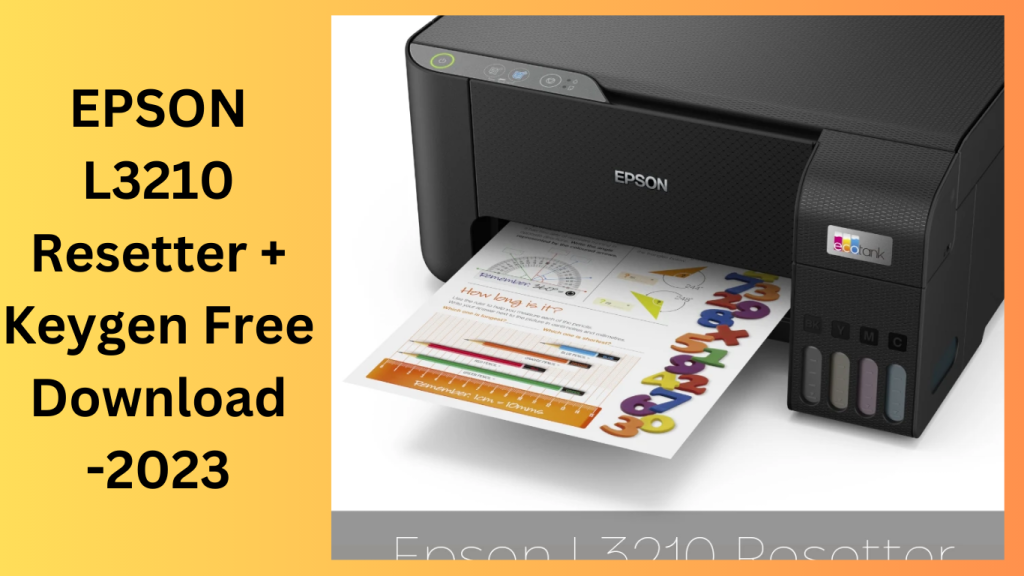
In today’s digital age, having a reliable printer at your disposal is essential. The Epson L3210 is a multifunctional printer that has gained popularity for its high performance and cost-effectiveness. However, like any other electronic device, it may encounter issues over time. One common problem that users may face is the dreaded “Service Required” error, which occurs when the printer’s waste ink pad counter reaches its limit. In this article, we will delve into the causes of this error and provide you with a comprehensive guide on how to troubleshoot and resolve it.
Understanding the “Service Required” Error
What Is the Waste Ink Pad Counter?
Before we dive into troubleshooting, let’s first understand the waste ink pad counter. In an Epson printer, the waste ink pad is responsible for collecting excess ink during the printing process. Over time, these pads can become saturated, leading to the “Service Required” error. This error is the printer’s way of indicating that it has reached its maximum ink pad usage.
Troubleshooting Steps
Now that we have a basic understanding of the issue, let’s explore the steps you can take to resolve the “Service Required” error on your Epson L3210 printer.
1. Check for Error Messages
Start by checking the printer’s display for any specific error messages or codes. These messages can provide valuable information about the exact nature of the problem.
2. Reset the Printer
One of the initial steps you can take is to reset the printer. To do this, follow these simple steps:
- Turn off the printer and unplug it from the power source.
- Wait for a few minutes to ensure all residual power is drained.
- Plug the printer back in and turn it on.
3. Update Printer Drivers
Outdated or incompatible printer drivers can also lead to errors. Visit the official Epson website to download and install the latest printer drivers for your Epson L3210.
4. Clean the Waste Ink Pads
If the error persists, you may need to physically clean or replace the waste ink pads. Be sure to consult your printer’s manual or contact Epson customer support for guidance on this process.
5. Use a Reset Utility Tool
Epson provides reset utility tools that can reset the waste ink pad counter. These tools are available for download on their official website. Follow the instructions carefully to use the tool effectively.
6. Contact Epson Support
If all else fails, don’t hesitate to contact Epson’s customer support. They have trained technicians who can assist you in resolving the issue and provide further guidance.
How to Install:
-
Install the Reset Utility Tool:
- After downloading the tool, run the installer to install it on your computer.
- Follow the on-screen instructions to complete the installation process.
-
Run the Reset Utility Tool:
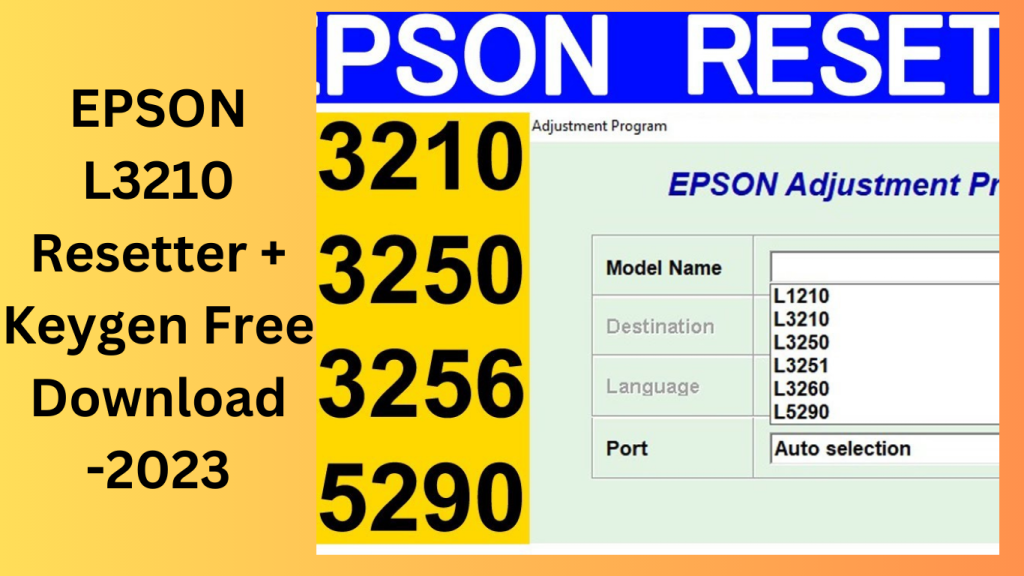
- Locate and run the reset utility tool that you installed. It is typically named something like “Epson Resetter” or “Epson Adjustment Program.”
-
Select your Printer Model:
- In the reset utility tool, select your Epson L3210 printer model from the list.
-
Choose “Waste Ink Pad Counter” Reset:
- Look for the option to reset the “Waste Ink Pad Counter” or a similar term related to the error you’re facing.
-
Click “Reset” or “Initialize”:
- Click the “Reset” or “Initialize” button within the utility tool to reset the waste ink pad counter. This action will reset the counter to zero.
-
Turn Off and On Your Printer:
- Once the reset process is complete, turn off your Epson L3210 printer and unplug it from the power source.
- Wait for a few minutes to ensure that any residual power is drained from the printer.
- Plug the printer back in and turn it on.
-
Test Your Printer:
- Print a test page or perform a printing task to ensure that the “Service Required” error no longer appears, indicating that the reset was successful.
Conclusion:
The Epson L3210 is an excellent multifunctional printer known for its performance and affordability. However, encountering the “Service Required” error can be frustrating. By following the troubleshooting steps outlined in this article, you can quickly resolve this issue and get back to using your printer without any hassles.
FAQs:
1. What causes the “Service Required” error on the Epson L3210?
The “Service Required” error on the Epson L3210 occurs when the printer’s waste ink pad counter reaches its limit, indicating that the ink pads may need cleaning or replacement.
2. Can I reset the waste ink pad counter myself?
Yes, you can reset the waste ink pad counter using Epson’s reset utility tool, which is available for download on their official website. However, it’s essential to follow the instructions carefully to avoid any issues.
3. Is it possible to prevent the “Service Required” error?
While you can’t entirely prevent the error, regular maintenance, such as cleaning the waste ink pads and updating printer drivers, can help reduce the likelihood of encountering this issue.
4. How often should I clean the waste ink pads?
The frequency of cleaning the waste ink pads depends on your printing habits. If you print frequently, consider checking and cleaning the pads every few months to prevent ink buildup.
5. What should I do if the error persists after trying all troubleshooting steps?
If you’ve exhausted all troubleshooting options and the error persists, it’s best to contact Epson’s customer support for further assistance and professional guidance.
Download Link!
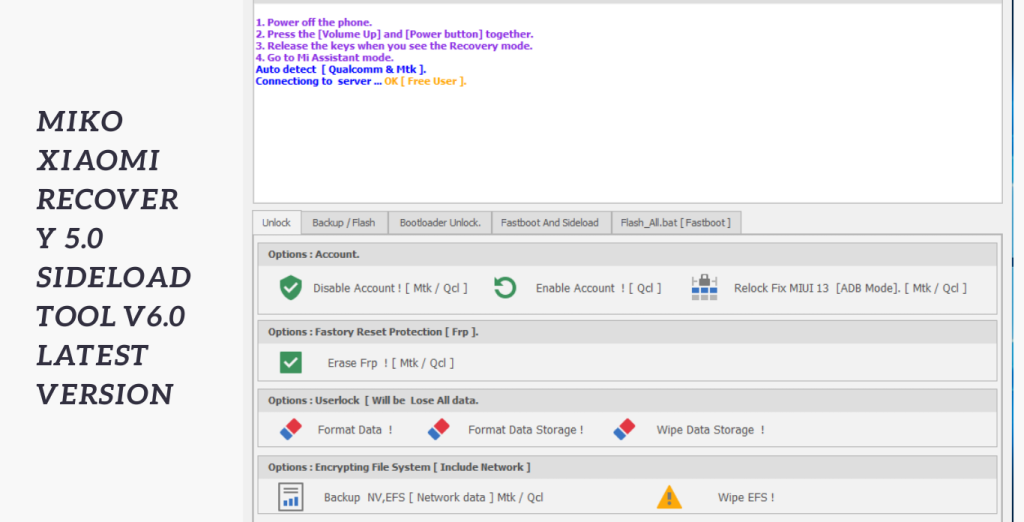
]]>A ground-breaking solution created by the Miko team and created especially for devices running the Xiaomi MIUI 13 operating system is the Miko Xiaomi Recovery 5.0 Sideload Tool. Bypassing Mi Reactivation Cloud, formatting, deleting FRP (Factory Reset Protection), and sideloading to EDL (Emergency Download) boot mode are just a few of the features that this compact yet potent programme gives customers. The Xiaomi MI Assistant (Sideload) mode makes it easy for users to carry out these tasks.
Quickly handle a variety of issues:
The Miko team created the robust and practical Miko Xiaomi Recovery 5.0 Sideload Tool. Users may quickly handle a variety of issues experienced on Xiaomi MIUI 13 devices because to its breadth of functionality, including sideloading to EDL boot mode, formatting, eliminating FRP, and circumventing Mi Reactivation Cloud. This programme offers a dependable solution whether you need to get around activation problems, reset your device, remove FRP, or carry out extensive diagnostics. Today, get the Miko Xiaomi Recovery 5.0 Sideload Tool to fully use your MIUI 13 smartphone.
How to Use the Xiaomi Recovery 5.0 Sideload Tool for Miko Xiaomi:
- Download and install on your PC
- The Xiaomi MIUI 13 phone should be configured to USB debugging. Go to Settings > About phone > MIUI version and tap it seven times to enable developer options. Go to Settings > Additional settings > Developer options and then allow USB debugging.
- Use a USB cable to connect your Xiaomi device to the PC.
- Launch the Miko Xiaomi Recovery 5.0 Sideload Tool, then choose the necessary operation, such as formatting,
- sideloading to EDL boot mode, avoiding the Mi Reactivation Cloud, or erasing FRP.
- Follow the tool’s on-screen instructions to complete the selected process.
Key Features:
- It enables users to bypass the Mi Reactivation Cloud and provides a workable solution for people who have had activation issues with their Xiaomi MIUI 13 devices.
- With the help of this programme, users may format their devices, erasing all data and settings, and performing a factory reset.
- This feature is useful when fixing or preparing a device for resale.
The programme makes FRP (Factory Reset Protection) removal feasible. - After a factory reset, a security feature called FRP can occasionally make it challenging to access a device.
- By employing it, users may circumvent this security measure and regain access of their MIUI 13 devices.
- To boot into EDL mode, users can sideload software using the Xiaomi MI Assistant (Sideload) option.
System Requirements:
- Operating System: Intel Core i3 or above is the suggested CPU.
- Windows 10, Windows 8.1, Windows 8, or Windows 7 are the other options.
- RAM: at least 4 GB, however 8 GB or more is recommended.
- 100 MB or more of available disc space for storage.
- Xiaomi MIUI 13 devices may be synced via USB 2.0 or USB 3.0 connections.
- Additional Requirements: Xiaomi MIUI 13 device with USB debugging enabled and USB cable for connecting the Xiaomi device to the PC
How to Install:
- The configuration file may be obtained from a reliable website or the Miko team’s official website.
- Locate the downloaded setup file on your computer and double-click it to start the installation process.
- The installer will start and display the installation wizard.
- If prompted, read and accept the terms and conditions of the licence agreement.
You can install the software in either the default place or a specific folder that you choose. - To continue, select “Next”.
- Select the extra parts or options to install if the installation process provides them. Should it not, select “Next.”
- Click “Install” after carefully reviewing the list of installation choices.
Password: technicalworld.co
Mirror Link!
]]>Xiaomi Fire Tool, commonly referred to as Mi Account Fastboot To EDL Flashing Tool, is an effective repair tool created especially for Xiaomi smartphones. All Xiaomi phone models currently on the market are fully compatible with this tool. Even inexperienced users may quickly explore and use its features because to its user-friendly interface. The Xiaomi Fire Tool 2.9 is a crucial tool for fixing Xiaomi phones since it has a number of repair features, such as firmware flashing, Mi account unlocking, and FRP lock removal.

Repair tool for Xiaomi smartphones:
The Mi Account Fastboot To EDL Flashing Tool, also known as Xiaomi Fire Tool 2.9, is a crucial repair tool for Xiaomi smartphones. It offers a complete answer for varied repair needs thanks to its broad compatibility, user-friendly interface, and functions including firmware flashing, Mi account unlocking, and FRP lock removal. Download Xiaomi Fire Tool 2.0 right away to fully realise your ability to easily fix Xiaomi phones.
Xiaomi Fire Tool 2.9: How to Use It:
The procedure of using Xiaomi Fire Tool 2.9 is simple. To make use of its mending skills, take the following actions:
- Xiaomi Fire Tool 2.9 may be downloaded and installed from the official website or another trustworthy source.
- Fire up the programme on your PC.
- Using a USB cord that is compatible, join your Xiaomi phone to the computer.
- On your Xiaomi phone, click to Settings > About phone > MIUI version, and then touch on it seven times to enable USB debugging. Then, turn on USB debugging by going to Settings > Additional settings > Developer options.
- Choose the required repair procedure from the list of options in the tool, such as firmware flashing, Mi account unlocking, or FRP lock removal.
- To finish the chosen repair, according to the Xiaomi Fire Tool 2.9’s on-screen instructions.
Key Features:
- It is designed to work with all of the Xiaomi phones that are currently available.
- No matter the model or version, this tool can handle a range of repair needs.
Thanks to its simple and intuitive user interface, it provides both new and experienced users with a hassle-free experience. - The tool’s functionality is easily accessible by users because to its straightforward design.
The firmware flashing function of the programme allows users to install or upgrade firmware on Xiaomi phones. - This makes it easier to repair software-related issues, enhance device performance, and stay up to speed with new firmware upgrades.
It provides a reliable method for opening Mi accounts. Unlocking a Mi Account. - Users can regain access using this feature.

System Requirements:
- Operating system: You can choose from Windows 10, Windows 8.1, Windows 8, or Windows 7.
- Processor: An Intel Core i3 or above is suggested.
- RAM: at least 4 GB, however 8 GB or more is recommended.
- 100 MB or more of available disc space for storage.
- Xiaomi smartphones have USB 2.9 or USB 3.0 ports available for connection.
How to Install:
- Download the setup file from a reliable source or the company’s website.
- Locate the downloaded setup file on your computer and double-click it to start the installation process.
- The installer will start and display the installation wizard. Follow the on-screen instructions to finish the installation.
- If prompted, read and accept the terms and conditions of the licence agreement.
- You can install the software in either the default place or a specific folder that you choose.
- To continue, select “Next”.
- Select the extra parts or options to install if the installation process provides them.
- Should it not, select “Next.”
- After reading the description of the installation choices, click “Install” to begin the installation process.
Password: technicalworld.co
Mirror Link!
]]>
Zenon Unlock Tool I advise seeking into trustworthy sites like dependable technology forums, well-known software repositories, or official Samsung resources if you’re looking for a trustworthy, free unlocking solution for your Samsung phone. These websites frequently provide secure and dependable unlocking methods for Samsung handsets.
Zenon Unlock 2.5 Samsung Qualcomm Xiaomi Free Unlocking Tool Download:
If you intend to unlock or flash your mobile device, I advise doing your homework from reliable sources and getting advice from respected technical forums or official help channels.
Features:
- With this skill, you can modify the software or firmware on your device.
- The software enables the unlocking of several different mobile phone manufacturers. This includes unlocking choices like Mi Account/FRP (Factory Reset Protection), which may be utilised to get around device security measures.
- With this streamlined process, you may complete each step with a single click.

How To Use:
- Start by downloading the utility file by clicking the provided link.
- Next, purge all files from your computer’s C: disc. The installation process depends on this step.
- In the location where you extracted the downloaded files, look for the setup file. Follow the simple steps below to continue with the installation.
- Run the “Zenon.exe” file to launch the software.
- If not, skip this step.
- Connect your smartphone to your PC via a USB connection.
- There are now several uses for the Zenon Unlock Tool.
Password: technicalworld.co
Download Link!
]]>Using the Realme Upgrade Tool to flash stock firmware onto your Realme smartphone is an easy process that even non-technical people can do. The programme provides a hassle-free and easy flashing process with its user-friendly interface and detailed instructions. On your Realme smartphone, installing the official Stock ROM will provide you the advantages of improved performance, increased stability, and bug fixes.

Useful for flashing Stock Firmware:
The Realme Flash Tool is useful for flashing Stock Firmware as well as fixing problems with your Realme phone like Bootloops or being stuck at the boot logo. You may efficiently fix these issues and restore your gadget to working order by making use of the tool’s sophisticated capabilities and functionality. Putting an end to annoying boot difficulties.
Get the Realme Flash Tool from reputable and authorised sources:
Always be sure you get the Realme Flash Tool from reputable and authorised sources to ensure its security and validity. With the Realme Flash Tool, you can safely flash stock firmware, resolve boot-related issues, and unlock the full potential of your Realme device for steady, optimised performance.
Key Features:
- Flash Stock Firmware: Using this tool, users of Realme devices may quickly flash Stock Firmware. This aids in operating system updates, software bug fixes, and enhanced overall device performance.
- Fix for Bootloop and Boot Logo difficulties: The Realme Flash Tool can assist in resolving bootloop and boot logo difficulties by flashing the Stock ROM and returning your Realme device to operational status.
- User-Friendly Design: The tool is intended to have a user-friendly design, making it usable by both novice and expert users. A flawless flashing process is guaranteed by its user-friendly design and step-by-step instructions.
- Wide Device Compatibility: Users may flash stock firmware on a variety of Realme devices using the Realme Flash Tool.
- Firmware Verification: Before flashing, the utility checks the firmware’s integrity to make sure it is authentic and legitimate stock firmware, which you should install on your Realme device.
- Simple to Use Options: The utility offers choices for the firmware package, the flashing technique, and the wiping of user data. With the use of these settings, users may modify the flashing procedure to suit their needs and tastes.

System Requirements:
- Windows operating system (ideally Windows 10 but also Windows 8.1, Windows 8, or Windows 7)
- Intel Core i3 or later processor
- 4GB or more of RAM
- Storage: 10GB or more of unoccupied disc space
- USB 2.0 or USB 3.0 port
- Internet access is necessary to download the required firmware packages.
How to Install:
- Download the most recent version of the Realme Flash Tool that is compatible with your Realme device and the Windows operating system by going to the official Realme website or other reliable sources.
- Using an extraction programme like WinRAR or 7-Zip, find the downloaded file when it has finished downloading and extract its contents into a folder on your computer.
- Launch the setup for installation: Search for the installation setup file (usually with a.exe extension) in the extracted folder by opening it. It may be double-clicked to start the installation wizard.
- The installation wizard will walk you through the installation procedure; just follow the on-screen instructions. To continue with the installation, according to the on-screen directions by accepting the licence agreement and selecting the installation directory.
- Connect Your Realme Device: To connect your Realme device to your computer, use a suitable USB cable.
- Find the Realme Flash Tool icon on your desktop or in the Start menu to launch it. To start the tool, double-click the icon.
- Open the Realme Flash Tool, choose the firmware package, pick a flashing technique, and start flashing your Realme device by following the tool’s instructions.
Password: technicalworld.co
Mirror Link!
]]>With the most recent release of the Mi Bypass Tool, version 3.9.0, unlocking, bypassing, and flashing Xiaomi devices has never been simpler. This cutting-edge tool, created to meet the demands of Xiaomi device users, provides a quick and easy way to unlock Xiaomi devices, get through lock screens, and flash the program firmware. Whether you’re a seasoned mobile technician or a DIY enthusiast, the Mi Bypass Tool 3.9.0 is your go-to partner for simple device administration.

With Confidence, Unlock and Bypass:
With it, lock screen irritations are a thing of the past. This programme offers a simple way to unlock and go around lock screens on Xiaomi smartphones. Hence, It handles any lock screen or security barrier. Whether you misplaced your password, PIN, or lock pattern.
Flashing Firmware Easily:
With the Mi Bypass Tool 3.9.0, you can easily customize your Xiaomi smartphone or fix software-related problems. With the help of this adaptable utility, you can easily flash OEM ROMs or custom firmware into your smartphone. Hence, it delivers a speedy and dependable flashing procedure, guaranteeing that your Xiaomi device functions smoothly and ideally whether you want to improve performance, add custom features, or fix software bugs.
Key Features:
- Utilising the Mi Bypass Tool: 3.9.0, you may quickly unlock and go beyond the lock screen or security measures on Xiaomi smartphones.
- Flashing Firmware: To customize or fix software-related problems on your Xiaomi gadget, flash official ROMs, program programs, or custom firmware.
- User-Friendly design: The Mi Bypass Tool 3.9.0 is accessible to users of all skill levels thanks to its user-friendly design. Technical knowledge is not necessary.
- Speed and effectiveness: You can quickly unlock, bypass, and flash your Xiaomi smartphone, which will save you time and effort.
- Safe and Reliable: The Mi Bypass Tool 3.9.0 was created with the idea of safety in mind, guaranteeing a secure and dependable operation without the possibility of data loss or device damage.

System Requirements:
- Operating System: Windows operating systems, including Windows 7, 8, and 10, are compatible with the programme.
- Xiaomi Device: Moreover, A variety of Xiaomi devices are supported by it. Make sure the tool is compatible with your particular device.
How to Install:
- Get the setup file here: To get it setup file, look for a reliable source or go to the official website.
- Find the setup file: Hence, After the download is finished, go to the folder or place on your computer where the setup file was saved.
- Run the setup program, The setup file must be double-clicked to begin the installation procedure. Your operating system might ask you to confirm your action.
- Take the Installation Wizard’s advice: Hence, You will be led through the installation procedure by the installation wizard. If asked, read and agree to the terms and conditions. You can also be prompted to select the tool’s installation location.
- Launching the Installation: To begin the installation procedure, click the “Install” or “Next” button.
Password: technical world.co
Mirror Link!
]]>